How to Factory Reset a Toniebox 2
A factory reset is the right move in four situations: the box will not finish WiFi setup, you bought it second-hand and it says it belongs to someone else, you are passing it on, or everything else has failed.
It is also tonies' own last resort, not its first suggestion. So before the reset steps, there is a shorter list of things to try that fix most problems without wiping the box. Start there.
One more thing worth knowing up front: the Toniebox 1 and Toniebox 2 reset procedures are completely different, and on the Toniebox 1 the difference between a restart and a full wipe is whether the box is sitting on its charger. Get that wrong and you delete everything. Both methods are below, clearly separated.
Try these first
This is tonies' own troubleshooting order for a Toniebox 2 that will not set up.
1. Wait. tonies says a connection can take up to 7 minutes and that waiting a few extra minutes often solves it. People reset far too early
2. Restart the box, then retry setup. A restart is not a reset and keeps your content
3. Factory reset via the app, then remove the Toniebox 2 from your phone's Bluetooth settings, then retry setup. That second part matters and is easy to miss
4. Contact the Customer Happiness team
How to restart a Toniebox 2 (not a reset)
With the box unplugged, squeeze both ears until the sleep light or timer appears, then keep holding for up to around 60 seconds until it switches off. Reconnect the charger. You know it worked when you get the Welcome Lights and the Welcome Music.
Fixes for specific WiFi problems, straight from tonies
| Problem | What tonies says to do |
| Wrong WiFi password | Re-check it, remembering it is case-sensitive. Then try a mobile hotspot. Then contact support |
| Your network is not in the list | Tap Refresh, move closer to the router, restart setup. Then try a hotspot |
| Open network with no password | Complete setup over a mobile hotspot first, then retry the open network |
| Network name has unusual characters | Rename the network or move location. Factory reset before retrying. tonies says setup will not work with that interference, even on a hotspot |
| Network name is over 32 characters | Set up via a hotspot, then shorten the network name to 32 characters or fewer |
| Light ring flashing red, no sound | Restart. If the red persists, contact support |
The Toniebox 2 factory reset, step by step
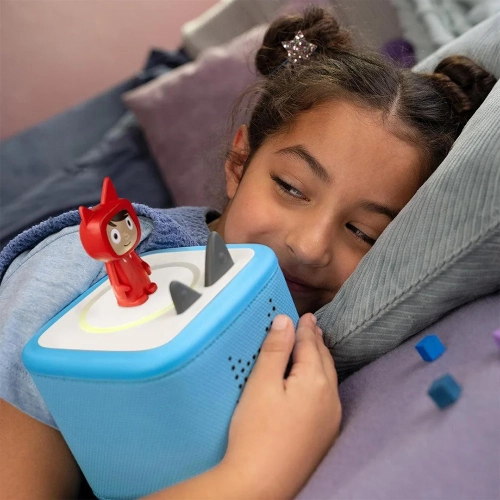
Taken from tonies' own instructions.
1. Turn on the Toniebox 2 and wait until the light ring turns green
2. Make sure it is unplugged from power
3. Turn it upside down and press and hold both ears for 5 seconds, until you hear a sound signal
4. Turn it back over. The light ring glows white
5. Press and hold the small ear. The reset begins and the box guides you through by voice
6. Wait until it confirms the reset is complete
You can also reach the instructions in the app: Mine, then your Toniebox 2, then Settings at the top right, then scroll to the bottom for Factory reset instructions.
Being straight with you about a gap: tonies does not publish how long to hold the small ear in step 5, what the light ring does during the reset itself, or exactly how completion is confirmed. The box talks you through it, so follow the voice prompts rather than a stopwatch. We are not going to invent a hold time for a step that could cost you your setup.
A note on the white light
On the Toniebox 2's light ring guide, solid white means parent access mode, which is the state step 4 puts you into. There is no separate documented reset-in-progress colour.
The rest of the light ring codes, since they are useful while you are troubleshooting:
| Light | Meaning |
| No light | Brightness set to 0% in the app, or the box is off |
| Blue swinging semi-circle | Pairing or setup mode |
| Flashing blue full circle | Downloading content or connecting to the internet. Returns to solid green when done |
| Solid green | Ready |
| Solid white | Parent access mode |
| Solid orange | Nightlight active. Squeeze both ears for 5 seconds to turn it off |
| Flashing red full circle | Connection error, usually with an error message or codeword |
| Partial flashing red | Out of battery, needs charging |
| Rainbow | A Tonie is playing |
Toniebox 1 is completely different, and there is a trap
| Toniebox 1 | Toniebox 2 | |
| Power state | ON the charging station, station plugged in | OFF power, unplugged |
| Position | Both upside down, ears pointing down | Upside down |
| Action | Pinch both ears for around 10 seconds until an audio signal | Hold both ears 5 seconds, turn over, hold the small ear |
| Result | The box shuts down | Voice-guided reset |
Here is the trap, and it is tonies' own warning. On a Toniebox 1, a restart and a factory reset are the same ear-pinch. The only difference is whether the box is on the charging station. tonies states plainly: do not pinch both ears while it is on the charging station if you only want a restart, because that restores factory settings and deletes all content.
So on a Toniebox 1: off the charger means restart, on the charger means wipe. Take it off the charger first if you only want a restart. You will know a Toniebox 1 restart worked when the LED is solid green, and it goes back into setup mode when you lift it off the charger and place it back down, saying "Hello, don't be scared..."
What a factory reset actually erases
tonies is clearer about this for the Toniebox 1 than the Toniebox 2.
- Toniebox 1, confirmed by tonies: all saved WiFi connections and all downloaded content are deleted
- Toniebox 2, confirmed by tonies: it returns the box to its day-one state, described as wiping everything clean
What tonies does NOT publish: an itemised list of what survives. Specifically, there is no confirmation of what happens to the household link, sleep timer, nightlight settings, brightness or volume limits. If anyone tells you precisely, they are guessing.
One thing you can rely on though: your Creative Tonie audio lives in your tonies account and the Toniecloud, not on the box. The figure is an NFC key, not storage. So a factory reset does not delete your Creative Tonie recordings from your account. They re-download once the box is back online and linked.
"This Toniebox is already in another Household"
This is the message that brings most people to a reset, and it is the most important section here.
What it means: the box is registered to a different tonies Household, so it cannot simply be added to yours. It usually happens because the previous owner never removed it, or because a gift was set up by the person giving it.
If it was a gift
Check with whoever gave it to you first. tonies' wording is that the gifter may have already set up the Toniebox and will just need to remove it from their household, or transfer ownership to you. That is the clean route.
If it was not a gift, for example a second-hand purchase
The good news: tonies documents a self-service route, and it does not require the previous owner to do anything.
Via the tonies app, which is the easier path:
1. Start setup as normal
2. When prompted that the box is in another Household, tap Setup and move to my household
3. The app walks you through the factory reset, power cycling and pairing
Via my.tonies.com:
1. Factory reset the box
2. Connect it to your WiFi at my.tonies.com/wifi
3. Go to Tonieboxes, then Add Toniebox
4. Choose the option to add an already-connected Toniebox
5. Enter the Toniebox ID
There is also a third option if you do not need to move it: leave it in the original household and just connect it to a new WiFi network.
Two honest caveats. First, if the move fails, tonies says contact support with the Toniebox ID. Second, the article covering this sits in tonies' Toniebox 1 section and its reset sub-steps are the Toniebox 1 ones. If you have a Toniebox 2, substitute the Toniebox 2 reset method above and use the app flow rather than following those sub-steps literally.
Before you sell or give away a Toniebox
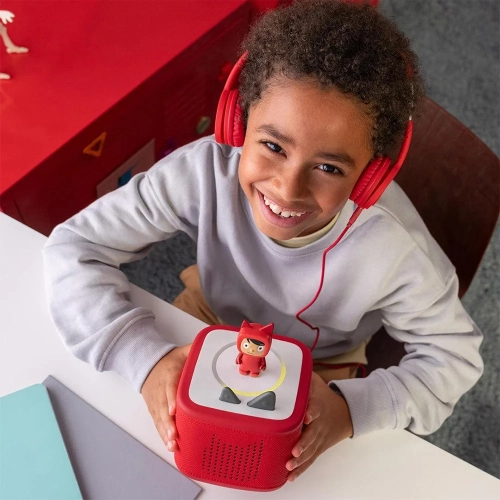
Do both things, not just one. Factory reset the box AND remove it from your household, so the next owner does not hit the already in another Household wall.
Removing it from your household
| Where | Steps |
| Original tonies app | Tonieboxes tab, tap the Toniebox image, settings icon top right, red trash can icon, then Remove to confirm |
| New tonies app | Tap the Toniebox image, scroll down, Advanced settings, Remove from Household, then Delete to confirm |
| my.tonies.com | Log in, Tonieboxes header, click the Toniebox image, Remove from household, then Remove Toniebox to confirm |
Note that removing a box from a household is different from transferring the whole household. Transferring ownership hands over your entire account setup: you invite the recipient into your household, confirm they do not already own one, then on my.tonies.com go to the Members tab, Household preferences dropdown, Leave this household, select the new owner and click Set New Owner.
tonies does not state what happens to content after a box is removed from a household, so if you have Creative Tonie recordings you want to keep, make sure they are safe in your account before handing anything over.
The Creative Tonie that will not play updated content
You will see this described online as a Toniebox 2 bug. tonies does not call it one, and the explanation it gives is actually useful.
tonies names two causes:
- The Toniebox 2 is not connected to WiFi. Check the status in the app
- The Tonie was placed on the box too soon. Unlike the Toniebox 1, the Toniebox 2 synchronises automatically, roughly 30 seconds after power-on, and putting a Tonie on before that blocks the sync
That second one is the real answer for most people. The Toniebox 1 synced manually. The Toniebox 2 does it on its own, and it needs a moment. If your child slaps the Tonie on the second it wakes up, the sync never happens.
tonies' two published workarounds
Option 1, a restart. With the box on and unplugged, press and hold both ears for 60 seconds. Use a timer and keep holding even if the display changes. It will switch off. Plug it back into power. It worked if the light ring comes on and it makes sounds again.
Option 2, let it sleep. Leave it to switch off by itself after five minutes of inactivity. Turn it on while on WiFi. Then wait at least 30 seconds before placing the Tonie.
If neither works, contact Customer Happiness and tell them which steps you tried.
Firmware and syncing
There is no manual update button and no force-sync, which surprises people.
- Changes you make in the app sync automatically with your Toniebox 2 when it is connected to WiFi
- To let firmware install, turn the box on, online, with no Tonie or Tonieplay game on it. It downloads and installs by itself
- Let it turn off on its own. That is how you know the update finished. The next power-on runs the latest firmware
- If a Tonie is placed on it mid-update, the update is skipped so playback can happen, then installs after playback ends and the box goes back to idle
tonies does not document any way to see which firmware version you are on, so if support asks, you may need them to check it from their end.
Toniebox 2 vs Toniebox 1
| Feature | Toniebox 1 | Toniebox 2 |
| Storage | 8 GB | 32 GB |
| Charging | Charging station | USB-C |
| Dynamic light ring | No | Yes |
| Age rating | 3+ | 1+ |
| Tonieplay compatible | No | Yes |
| Sleep timer with light | No | Yes |
| Sunrise alarm | No | Yes |
| Bedtime mode | No | Yes |
| Battery status in app | No | Yes |
| Syncing | Manual | Automatic, around 30 seconds after power-on |
tonies does not publish a battery life figure in hours for either model, only that the Toniebox 2 lasts longer. Any site quoting you a specific hour count for the Toniebox 2 is guessing.
Warranty and support
- All tonies products carry a 2 year technical warranty. There is no voluntary guarantee beyond the statutory one
- Warranty applies only with proof of purchase
- Bought from tonies' own online shop? tonies is your contract partner. Contact them with your Toniebox ID and order number
- Bought from a retailer? The retailer is your contract partner and your first point of call
- tonies may try to fix it remotely with a software update first, so contact Customer Happiness with your Toniebox ID
- Contact is via the request form on support.tonies.com. No public phone number or direct support email is published
FAQ
How do I factory reset a Toniebox 2?
With the box on and the ring green, unplug it, turn it upside down and hold both ears for 5 seconds until you hear a sound. Turn it over, the ring glows white, then press and hold the small ear. The box guides you through the rest by voice.
Does a factory reset delete my Creative Tonie recordings?
No. Creative Tonie audio lives in your tonies account and the Toniecloud, not on the box. The figure is an NFC key. Your recordings re-download once the box is online and linked again.
I bought a used Toniebox and it says it is in another household. What do I do?
Start setup in the tonies app, and when prompted tap Setup and move to my household. The app walks you through the factory reset and pairing. The previous owner does not need to do anything for this route. If it fails, contact tonies support with the Toniebox ID.
What is the difference between a restart and a factory reset?
A restart keeps everything. A factory reset wipes WiFi settings and downloaded content. On a Toniebox 1 they use the same ear-pinch, with the only difference being whether the box is on the charging station, so be careful. On a Toniebox 2 they are separate procedures.
Why is my Creative Tonie not playing the new content?
Usually because the Tonie went on too soon. The Toniebox 2 syncs automatically around 30 seconds after power-on, and placing a Tonie before that blocks the sync. Turn the box on, wait at least 30 seconds, then place the Tonie. Also check it is on WiFi.
What should I do before selling my Toniebox?
Factory reset it and remove it from your household, using the app or my.tonies.com. Doing only one of the two is what leaves the next owner stuck on the already in another household message.
Bottom line
Most Toniebox 2 problems do not need a reset. Waiting longer, restarting, or simply letting the box sync for 30 seconds before putting a Tonie on it will solve a good share of them.
When you do need the reset, the Toniebox 2 procedure is unplug, hold both ears for 5 seconds, turn over, hold the small ear, and follow the voice. The Toniebox 1 procedure is different and riskier, because the same ear-pinch that restarts it off the charger will wipe it on the charger.
And if you are buying or selling second-hand, remember the two-step rule. Reset the box and remove it from your household. That one habit is the difference between a Toniebox that works out of the box for the next child and one that greets them with an error message.
Do you agree with our How to Factory Reset a Toniebox 2 review?
Comments (0)
All comments are reviewed and approved by an admin before appearing publicly.
No comments yet - be the first to share your thoughts.
Ask a Question
Got a question about this review or the brand? Ask below - our team answers what we can, and it'll appear here for other readers too.